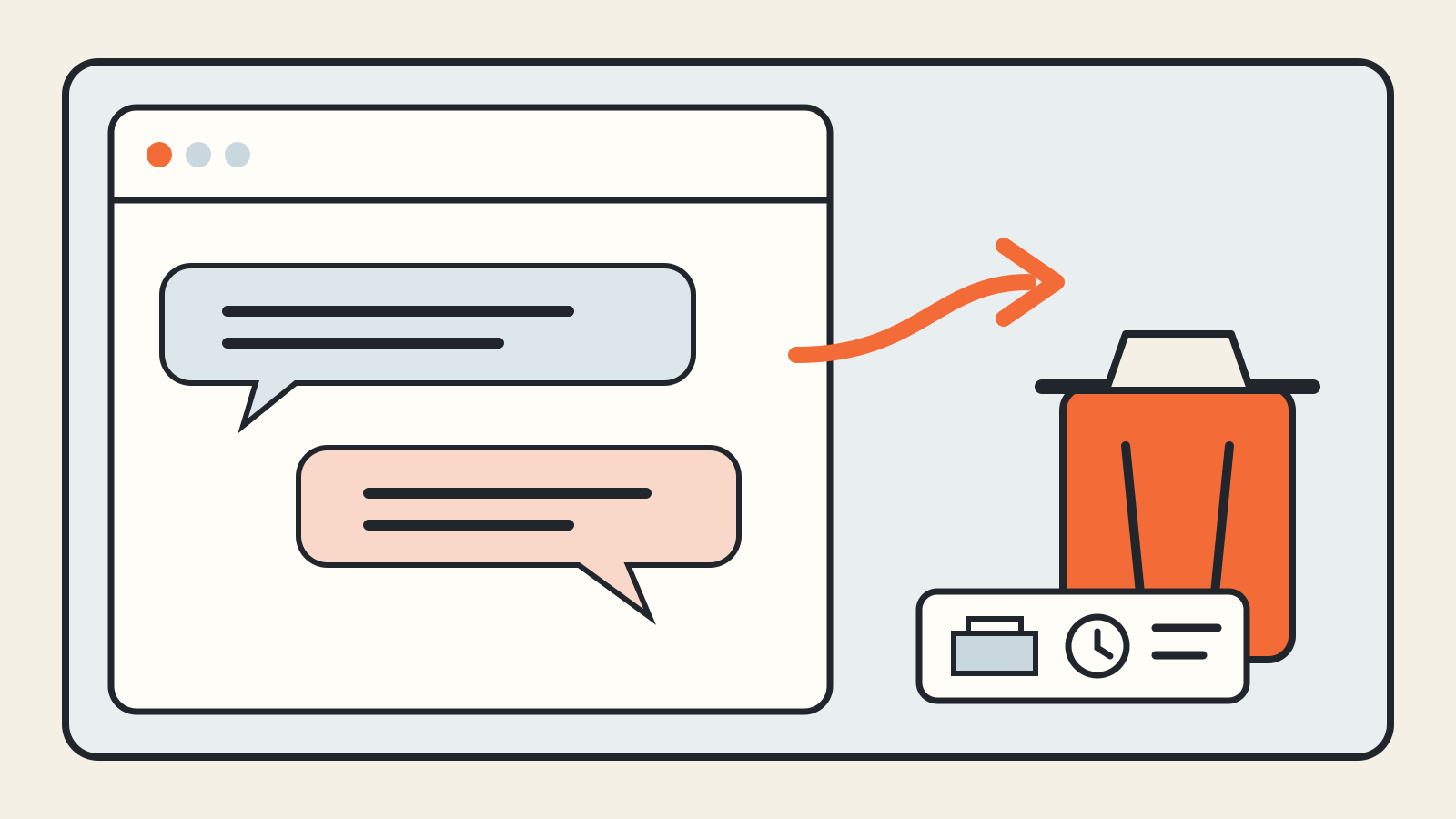
Deleting a ChatGPT conversation removes it from your account view immediately. OpenAI then schedules it for permanent deletion from its systems within 30 days, with limited exceptions for data already de-identified and disassociated from your account or data that must be kept longer for security or legal reasons.
The delete button is easy to find. The harder part is knowing what it does not remove: archived chats, separately saved files and memories can remain until you deal with them separately.
Documentation checked October 30, 2026. Menu names and availability can vary by plan, device and managed-workspace settings.
Delete one ChatGPT conversation
On the web, open your chat history, select the three-dot menu beside the conversation and choose Delete. Confirm the action when ChatGPT asks.
In the iOS or Android app, open the menu, find the conversation, press and hold its title, then choose Delete. OpenAI’s current deletion and archiving instructions say a deleted chat cannot be restored in ChatGPT or through OpenAI Support.
Deletion has two stages:
- The conversation disappears from your account view immediately.
- OpenAI schedules the conversation for permanent deletion from its systems within 30 days, subject to the exceptions above.
That is different from hiding a chat or turning off model training.
Delete all chats
ChatGPT also has a bulk control:
- Open Settings.
- Select Data controls.
- Choose Delete all chats.
- Review the warning and confirm.
The action can affect chats in the current account or workspace, including conversations inside projects. It cannot be undone, so check that you are in the correct account and workspace before confirming.
If you only want a cleaner sidebar, use Archive all chats instead. Archiving keeps the conversations in your account and under the same retention rules as other saved chats.
Archive is not deletion
An archived chat leaves the regular sidebar but remains searchable and available from Settings > Data controls > Archived chats. You can unarchive it later or delete it from the archived list.
OpenAI’s chat and file retention page says regular and archived chats remain saved until you delete them or an applicable workspace retention policy removes them. Archiving does not shorten that period.
This distinction matters when you are clearing sensitive or outdated material. A tidier sidebar does not mean the conversation has been deleted.
Turning off training does not delete history
On a personal Free, Plus or Pro workspace, Settings > Data controls may include Improve the model for everyone. Turning it off changes whether eligible new content can be used to improve OpenAI models. It does not hide or delete saved conversations.
OpenAI’s Data controls documentation treats model training, chat history, memory, export and account deletion as separate controls. If your goal is to remove a conversation, use Delete even when model improvement is already off.
Managed Business, Enterprise, Edu and Healthcare workspaces have organization-level rules. OpenAI says content from those workspaces is not used to train its models by default, while workspace retention and compliance settings can still affect access and deletion.
For a broader view of consumer settings, retention and account controls, see the ChatGPT privacy reference.
Check memories separately
Deleting a conversation does not necessarily delete a separate saved memory created from it. Open Settings > Personalization > Memory and review the controls available to your account.
OpenAI’s Memory documentation says removing remembered information can require deleting both the saved memory and the chat where the information appeared. You may also need to remove the same information from other regular or archived chats and from separately saved files.
Turning Memory off does not delete past chats. Turning Reference chat history off schedules information remembered from past chats for deletion within 30 days, but the original conversations remain until you delete them.
Check files, projects and connected apps
A file saved separately in Library or Space can survive the deletion of the chat that used it. Delete that saved file from its own Library or Space location if you want to remove that copy as well.
Files added to projects or custom GPTs follow their own retention rules. Deleting the relevant project, GPT or file schedules associated data for deletion, usually within 30 days unless an exception applies.
Connected-app data also needs care. Deleting a chat removes the conversation and connected-app data retained inside that conversation, subject to the usual exceptions. It does not delete the original document, email or record from the connected service. Disconnecting an app stops future access but does not erase old conversations that already used its data.
Use Temporary Chat for future conversations
Temporary Chat keeps a conversation out of regular history unless you save it. OpenAI says a temporary chat may still be kept for up to 30 days for safety purposes. Saving it turns it into a regular chat with the usual history, personalization and model-improvement settings.
Temporary Chat is useful when you do not want a conversation to become part of normal history. It is not a promise of instant deletion from every system.