A browser extension can save a click, improve accessibility or connect a useful service to the page you are reading. It can also be given access to the contents of that page, your browsing information or other browser capabilities.
The permission prompt is the point where the extension’s promised benefit meets its actual reach. Reading it in the context of the extension’s purpose is more useful than treating every warning as either harmless boilerplate or proof of malicious intent.
Page access is a substantial capability
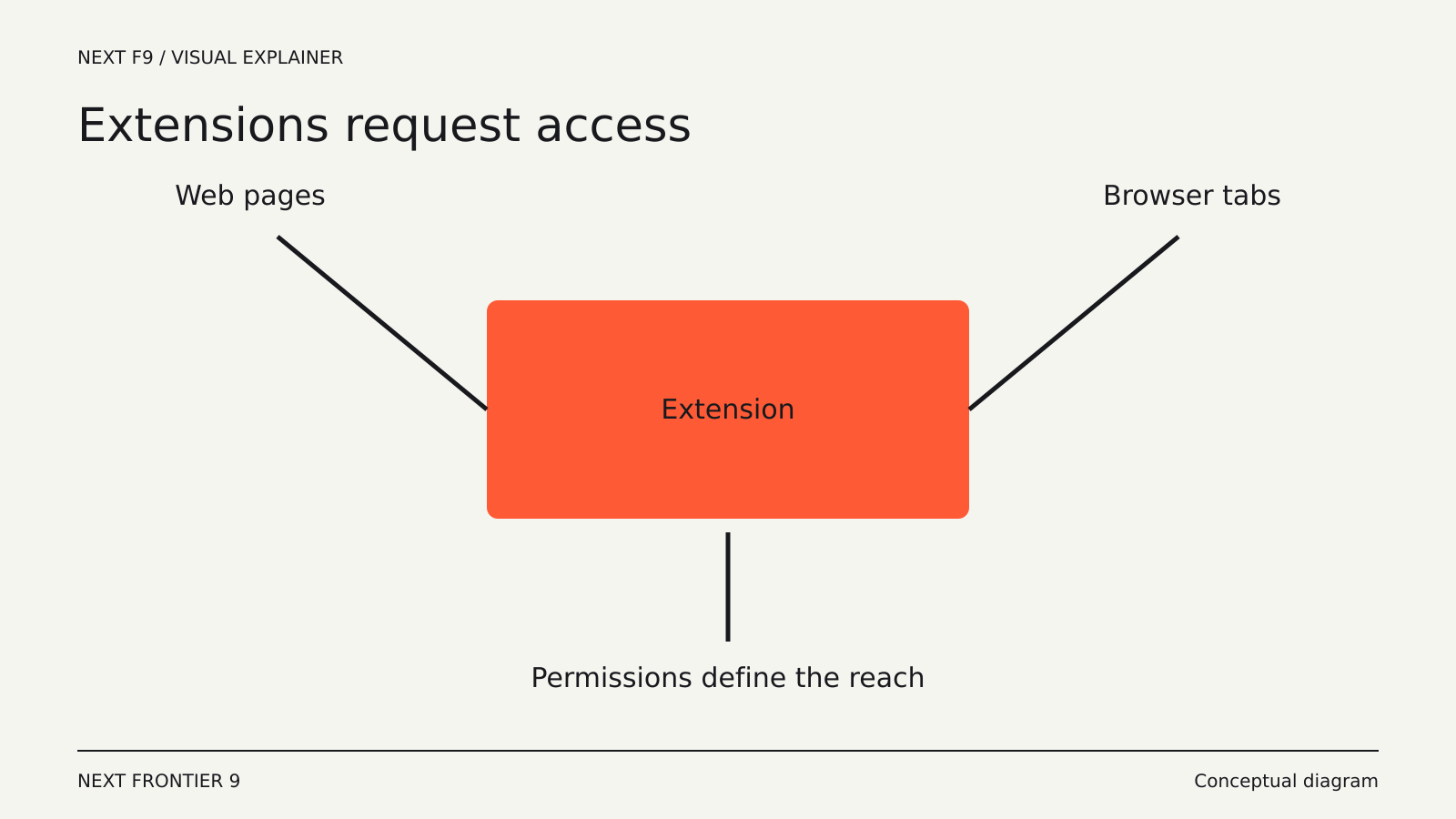
An extension that can read and change data on a website may be able to inspect page content and modify what you see, within the limits of the browser’s extension system.
For a translation tool, reading selected text may be central to the feature. For an extension that changes a single toolbar icon, broad access to every site would need a much better explanation.
Consider the pages where the extension could run: email, internal documents, shopping accounts and dashboards can all contain information you would not normally share with an unrelated service.
“This site” and “all sites” are different scopes
Host permissions can be limited to particular sites or cover a much wider range. Some browsers allow you to adjust when an installed extension can access a site.
A broad permission may support a legitimate feature, such as a tool that works wherever you browse. That still makes the extension’s developer, updates and data handling more consequential.
If the feature is only needed occasionally, see whether you can grant access when using it rather than leaving it active across every page. The available controls depend on the browser and extension.
Temporary access can be enough
Chrome provides an active-tab permission that grants temporary access to the site the user invokes the extension on. Chrome’s permission-warning guidance recommends it where appropriate, alongside optional permissions requested when a feature is actually used.
For the reader, the useful question is whether the product offers a narrow workflow. Can it process the current page after a click, or does it require continuous access to all browsing?
A more limited permission is not a complete guarantee of good behavior. It does reduce the amount of access granted for the task.
Not every capability produces a separate warning
Permission prompts summarize capabilities, and some warnings can be combined or omitted when another permission already covers the relevant access.
Chrome’s guidance gives the example that a tabs warning may not be shown separately when an extension also requests access to all URLs. The absence of an extra line therefore does not mean the capability is absent.
If a permission is unclear, read the extension’s listing and documentation. A good explanation connects the requested access to a specific function rather than merely claiming it is required.
Updates can change the relationship
An extension is software that can evolve after installation. New features may request additional permissions, and the developer or ownership of the project can change.
Chrome documents that adding a permission that triggers a warning can disable an extension until the user accepts the new access. That pause is an opportunity to review what changed.
It is also worth occasionally reviewing extensions you no longer use. A forgotten convenience tool can retain access long after its benefit has disappeared from your routine.
Check where the data goes
Permission to read a page does not tell you whether the extension processes information locally or sends it to a server. Those are different questions.
An AI summarizer, for example, may transmit page text to a model service. Another extension may perform its work entirely within the browser. Look for a description of the processing route and retention practices.
Be especially precise with work accounts. A browser permission granted by an individual can affect documents belonging to a team. The extension’s convenience does not establish that it is appropriate for every page you can open.
A short evaluation before installation
Identify the developer and verify that you are looking at the intended product. Read recent release information and the permission explanation. Reviews can reveal usability problems, but popularity alone does not establish safe data handling.
Install only if the requested access fits the function you need. Where the browser supports it, restrict site access and enable the extension only in the contexts where it is useful.
After installation, check the settings rather than assuming the initial defaults are the narrowest available. Remove the extension when it stops being useful.
An extension becomes part of the environment through which you read and act on the web. The best permission decision connects three concrete facts: what the tool does, what it can access and where the information it reads is processed.