Home › Explained › Transfer an authenticator app
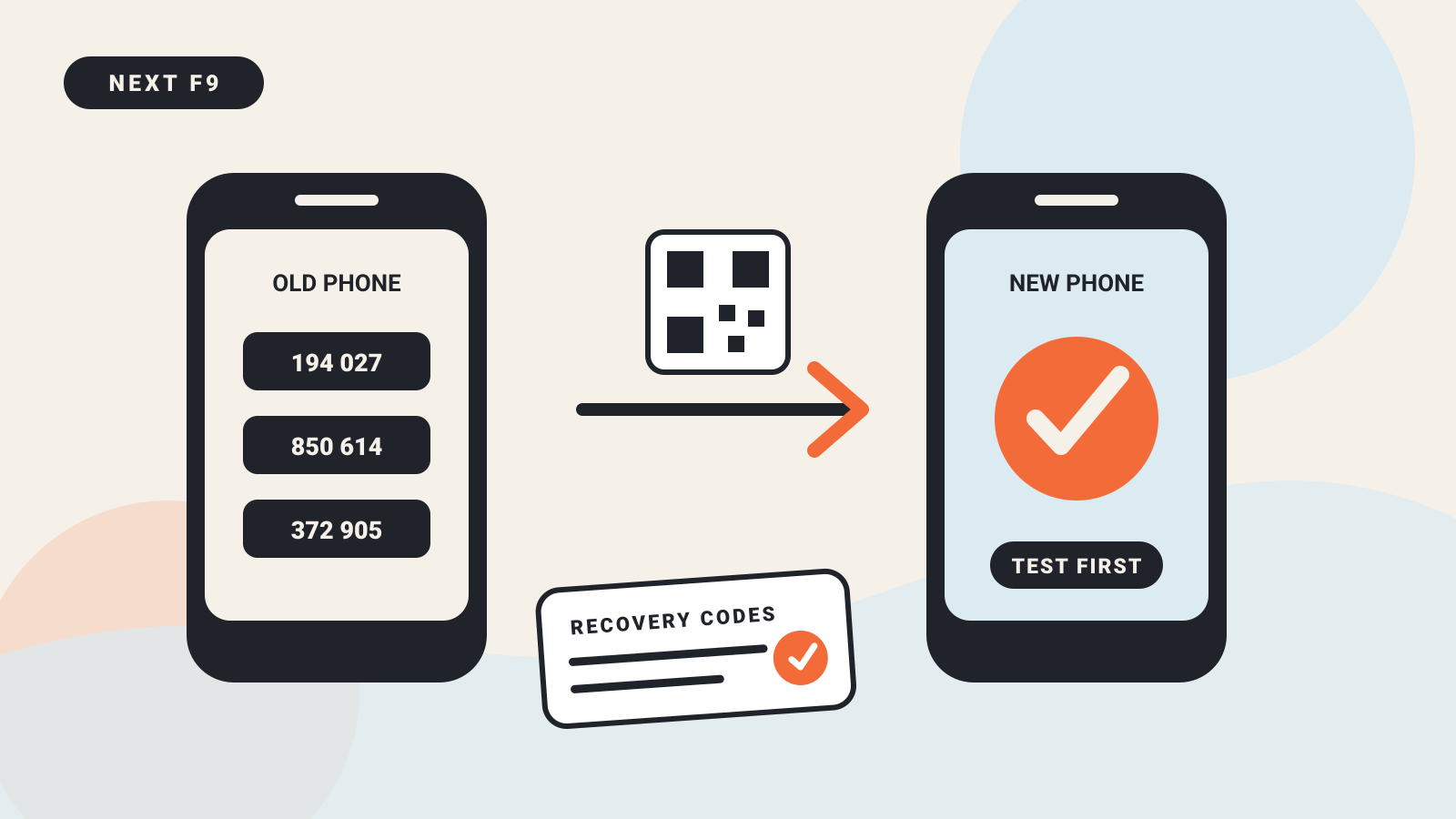
The safest way to transfer an authenticator app to a new phone is to keep the old phone working, create recovery options first, move the codes, and test several accounts before erasing anything.
The short version Save backup codes or another recovery method for your most important accounts. Use the authenticator app’s own transfer or backup feature. Test a code on the new phone for every account, and re-register work, school, push-notification, or passwordless accounts that the backup does not restore. Only then remove the old phone.
Changing phones is easy when the authenticator holds ordinary time-based one-time passwords. It is less predictable when the app also carries push approvals, device registration, or passwordless credentials. Treat those as separate jobs.
Before you move anything
Do not start by wiping the old phone. Put both phones on a desk, charge them, update the authenticator app, and confirm that you can unlock both devices.
For the accounts that would be hardest to recover—your primary email, password manager, cloud storage, finance services, and domain registrar—open the security settings and check what happens if the authenticator is unavailable. Create fresh backup codes where the service offers them, and store those codes somewhere other than either phone.
Google says each backup code can be used once. Creating a new set invalidates the previous set. The codes should not be shared; Google says it asks for one only during sign-in.
Also check whether you still control the recovery email address, recovery phone number, passkey, or hardware security key shown on each account. A phone migration is a good time to find an old number before it becomes an emergency.
Know what kind of sign-in you are moving
An authenticator app may contain several different things:
| Item | What it does | What to expect during a phone move |
|---|---|---|
| TOTP code | Generates a usually six-digit code that changes on a timer | Can often be transferred, synced, or restored |
| Push approval | Sends an approve/deny request to a registered device | Often needs the new device registered separately |
| Passwordless credential | Uses the phone and its screen lock instead of a password | May not be included in an app backup |
| Work or school registration | Connects the device to an organisation’s identity system | Often requires sign-in, an administrator’s policy, or a fresh QR code |
| Backup code | A single-use recovery route created by the account service | Store outside the authenticator app and use only when needed |
A successful restore of TOTP codes does not prove that push notifications or passwordless sign-in moved with them.
Google Authenticator: direct transfer
Google Authenticator has a transfer flow for moving codes from an old device to a new one.
- Install Google Authenticator on the new phone.
- On the old phone, open the app menu and choose Transfer accounts, then Export accounts.
- Unlock the old phone and select the accounts to transfer.
- The old phone displays one or more QR codes.
- On the new phone, choose Transfer accounts, then Import accounts, and scan the QR codes.
- Wait for the confirmation that the codes were transferred.
Treat the export QR code as a secret. Anyone who scans it can potentially generate the same one-time codes. Do not take a screenshot, upload it to cloud storage, include it in a support ticket, or show it during a screen-sharing call.
Google Authenticator can also save codes to a Google Account. If you use that sync feature, confirm that the correct Google Account is selected on the new phone and that the expected entries appear. Sync is convenient, but it does not replace backup codes for the Google Account itself.
After the transfer, sign in to two or three representative services with codes from the new phone. Then work through the complete list. A code that appears is not enough; the service must accept it.
Microsoft Authenticator: backup and restore
Microsoft Authenticator can back up one-time password codes, but Microsoft places an important limit on restore: the backup and the new phone must be the same device type. An iOS backup cannot be restored to Android, and an Android backup cannot be restored to iOS.
On the old phone, open Authenticator settings and turn on the cloud-backup option for the platform. On the new phone, install the app and choose Restore from backup or Begin recovery before signing in normally. Use the same recovery account that created the backup.
Microsoft’s restore documentation distinguishes several account types:
- ordinary 30-second codes for many personal and third-party accounts can be restored;
- passwordless credentials are not restored, even if the account name reappears;
- work and school credentials are not backed up—only the account name is restored;
- work and school accounts must be signed in and registered again on the new phone.
Keep the old phone available until every work or school account has been re-registered. If your organisation restricts security methods, you may need its normal support route or administrator rather than a consumer account-recovery page.
Moving between Android and iPhone
A direct Google Authenticator transfer can be used with both devices present because the new phone scans an export from the old app. Microsoft’s cloud backup is different: restore is limited to the same device type.
If you are switching platforms, plan for manual re-enrolment where the app cannot restore. For each service:
- Sign in while the old authenticator still works.
- Open the account’s security or two-step-verification settings.
- Add the new authenticator or replace the existing authenticator method.
- Scan the new setup QR code with the new phone.
- Enter a generated code to confirm the setup.
- Download or refresh backup codes if the service offers them.
- Remove the old authenticator method only after the new one is accepted.
Some services permit two authenticator devices at once; others replace the old secret as soon as a new QR code is confirmed. Follow the service’s own security page rather than assuming the old codes will continue.
Test before erasing the old phone
Use a small checklist instead of trusting a successful first scan.
- Can the new phone generate a code for every listed account?
- Does each account accept a new-phone code?
- Do push approvals arrive on the new phone?
- Can a work or school sign-in complete without the old device?
- Is passwordless sign-in registered on the new device?
- Are backup codes available outside both phones?
- Does the account still show the old phone as a sign-in method?
- Have you removed duplicate or stale entries only after testing?
Test from a browser where you are not already signed in, but keep an existing trusted session open elsewhere until the migration is complete. That gives you a route back into security settings if one method fails.
Do not repeatedly sign out of every device as part of the test. The goal is to prove the new method while preserving a known-good session.
If the old phone is lost or broken
Without the old phone, the app cannot display a transfer QR code. Start with an account-specific recovery method:
- a saved backup code;
- a passkey or hardware security key;
- a recovery email or phone number;
- an already signed-in trusted device;
- the service’s official account-recovery process;
- an organisation’s IT administrator for work or school access.
Once inside the account, remove or replace the lost device and enrol the new authenticator. If the phone may be in someone else’s hands, use the device platform’s lost-device controls and review recent sign-ins.
An authenticator vendor cannot normally recreate a third-party account’s secret from your username. Recovery belongs to the service that protects the account.
Clock errors and rejected codes
TOTP codes depend on time. If several accounts reject codes from the new phone, set the phone’s date and time to update automatically, then try a newly generated code. If only one service fails, use that service’s security settings to re-enrol the authenticator rather than repeatedly entering codes.
Be cautious when a support message asks for a current code, backup code, setup key, or QR image. Legitimate support should not need the secret that creates future codes.
When to retire the old phone
Erase the old phone only after:
- every critical account accepts the new authenticator;
- push and passwordless methods have been registered where needed;
- work and school accounts work on the new device;
- backup codes are stored safely;
- the old device has been removed from account security pages where appropriate.
Then sign out of accounts on the old phone, remove the authenticator entries, and use the phone maker’s normal erase process before sale, trade-in, or recycling.