A passkey is a sign-in credential that replaces a password. Instead of typing a secret, you approve the sign-in the same way you unlock your phone or computer: with your fingerprint, a face scan or your device PIN. The FIDO Alliance, which developed the standard, defines a passkey as an authentication credential “that can be stored on your phone or computer, or in a hardware security key”.
Your face or fingerprint does not become the website’s password. The device uses that local check to unlock a cryptographic key, and the website verifies the result without receiving your biometric data or any reusable secret.
How does a passkey work?
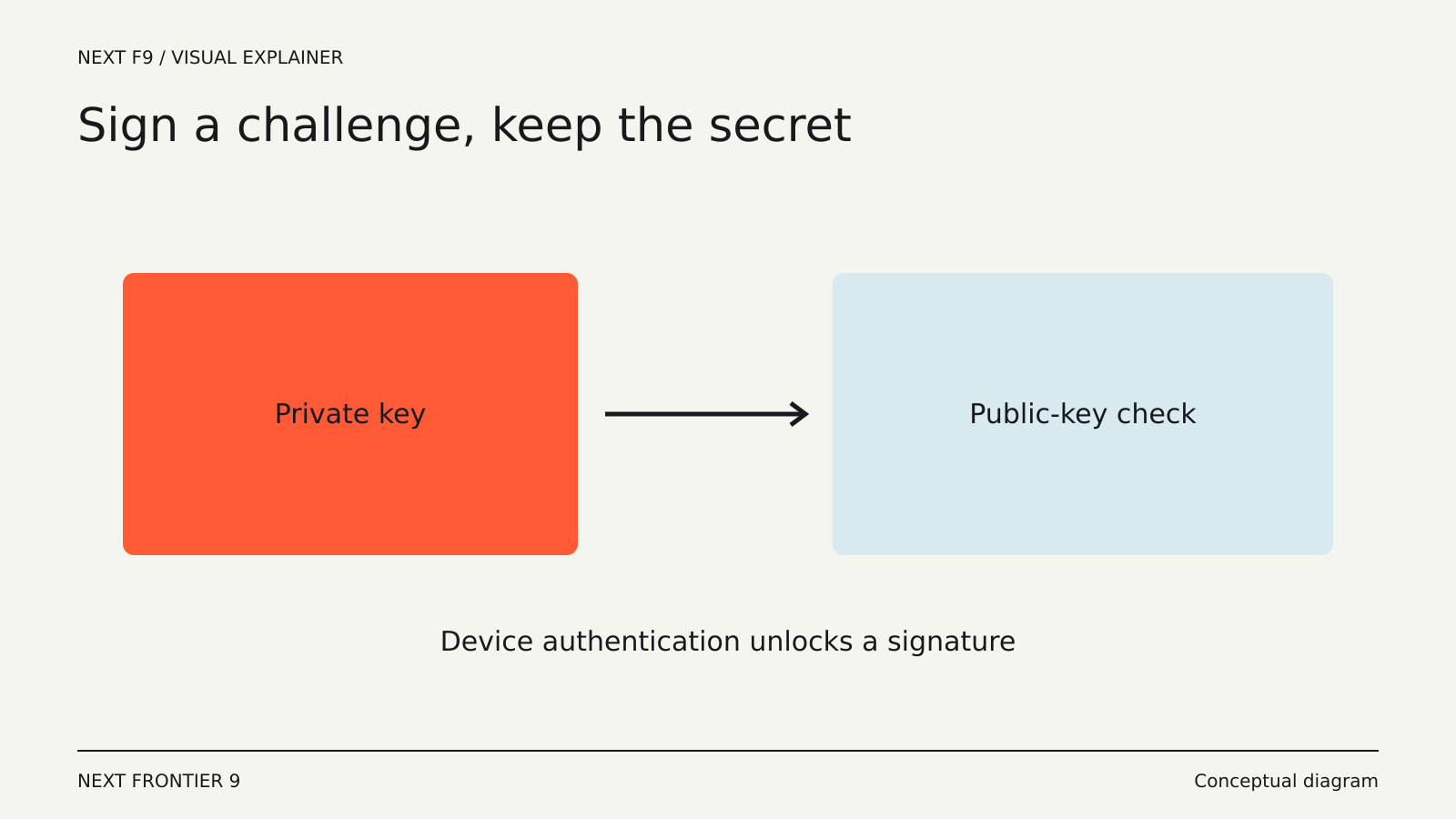
A passkey is a pair of cryptographic keys created for one account on one website or app. Apple explains that during registration the device “creates a unique cryptographic key pair” for that account:
- The public key is stored by the website. It is not a secret.
- The private key stays with you, on your device, in your password manager or on a security key. The website never learns it.
When you sign in, the website sends a challenge. Your device asks you to unlock it, signs the challenge with the private key and sends back the signature. The website checks the signature with the public key. No shared secret is ever transmitted.
The local unlock is separate from the website credential. A fingerprint or PIN tells your device it may use the passkey. Google states that biometric data used for fingerprint or face unlock “stays on your device and is never shared with Google”.
Passkey vs password
| Password | Passkey | |
|---|---|---|
| What you do | Type a secret | Unlock your device (fingerprint, face, PIN) |
| What the website stores | A secret (usually hashed) | A public key, which is not secret |
| Can it be phished? | Yes, if you type it into a fake site | Resistant: it only works for the site it was created for |
| Can it be reused on other sites? | Often is | No, each passkey belongs to one account |
| Can it be leaked in a data breach? | Yes | The public key is useless to an attacker |
Why passkeys stop phishing
A password is a secret you can type into the wrong page. If an attacker captures it, they can try it at the real service.
A passkey is bound to the identity of the service it was created for. A lookalike site cannot ask your browser to use the real site’s passkey. As Google puts it, passkeys “can’t be shared, copied, written down, or accidentally given to someone else”.
That is a big improvement for signing in, but it does not make everything safe. You can still be tricked into approving an unwanted payment after signing in, and a compromised device creates other risks.
Where passkeys are stored
A passkey can be saved in different places, and the choice affects how you use and recover it:
- Your platform’s keychain. On Apple devices, passkeys sync across your devices through iCloud Keychain, which Apple says is end-to-end encrypted with keys “not known to Apple”.
- A password manager that supports passkeys, which can sync them across devices and operating systems.
- A hardware security key that supports FIDO2. A passkey on a security key stays on that key.
When a service offers to create a passkey, check where it will be saved before you confirm.
What you need to use a passkey
Requirements differ by service. For a Google Account, Google lists:
- A computer with at least Windows 10, macOS Ventura or ChromeOS 109, a phone with at least Android 9 or iOS 16, or a FIDO2 security key.
- A browser such as Chrome 109, Safari 16, Edge 109 or Firefox 122, or newer.
- A screen lock turned on, Bluetooth on to sign in to another computer with your phone, and iCloud Keychain on for Apple devices.
How to set up a passkey (Google Account example)
- Go to myaccount.google.com/signinoptions/passkeys.
- Choose Create a passkey.
- Unlock your device when asked. To use a security key instead, choose Use another device and follow the instructions.
Google notes that adding a passkey does not remove your other sign-in or recovery methods, that a passkey skips the 2-Step Verification step because it proves you have the device, and that you should create passkeys only on devices you own: anyone who can unlock the device can then access the account. A new passkey may take up to 7 days to become available at sign-in.
Other services follow a similar pattern: open the account’s security or sign-in settings, choose to add a passkey, and confirm with your device. Then sign out and test a fresh sign-in.
Signing in on another computer
A website on a computer can show a QR code that lets you approve the sign-in with a phone that holds the passkey. The phone proves it has the passkey without you typing anything into the computer. Start from the real service’s sign-in page; a QR code from an email or message is not automatically trustworthy.
What if you lose your device?
If your passkeys sync through a keychain or password manager, a new device can get them back when you sign in to that account. A passkey on a single security key is gone if the key is lost, unless you registered another one.
The service also needs a recovery route, such as another registered passkey or its own recovery process. That fallback matters for the security of the whole account: a passkey does not strengthen a weak recovery method. Before removing a password, check that you have a second way in.
Passkeys protect the sign-in step. You still need to review active sessions and connected apps where a service offers those controls. For how AI assistants handle the data you type once you are signed in, see our AI chatbot privacy comparison; for another everyday permission check, read before you install a browser extension.