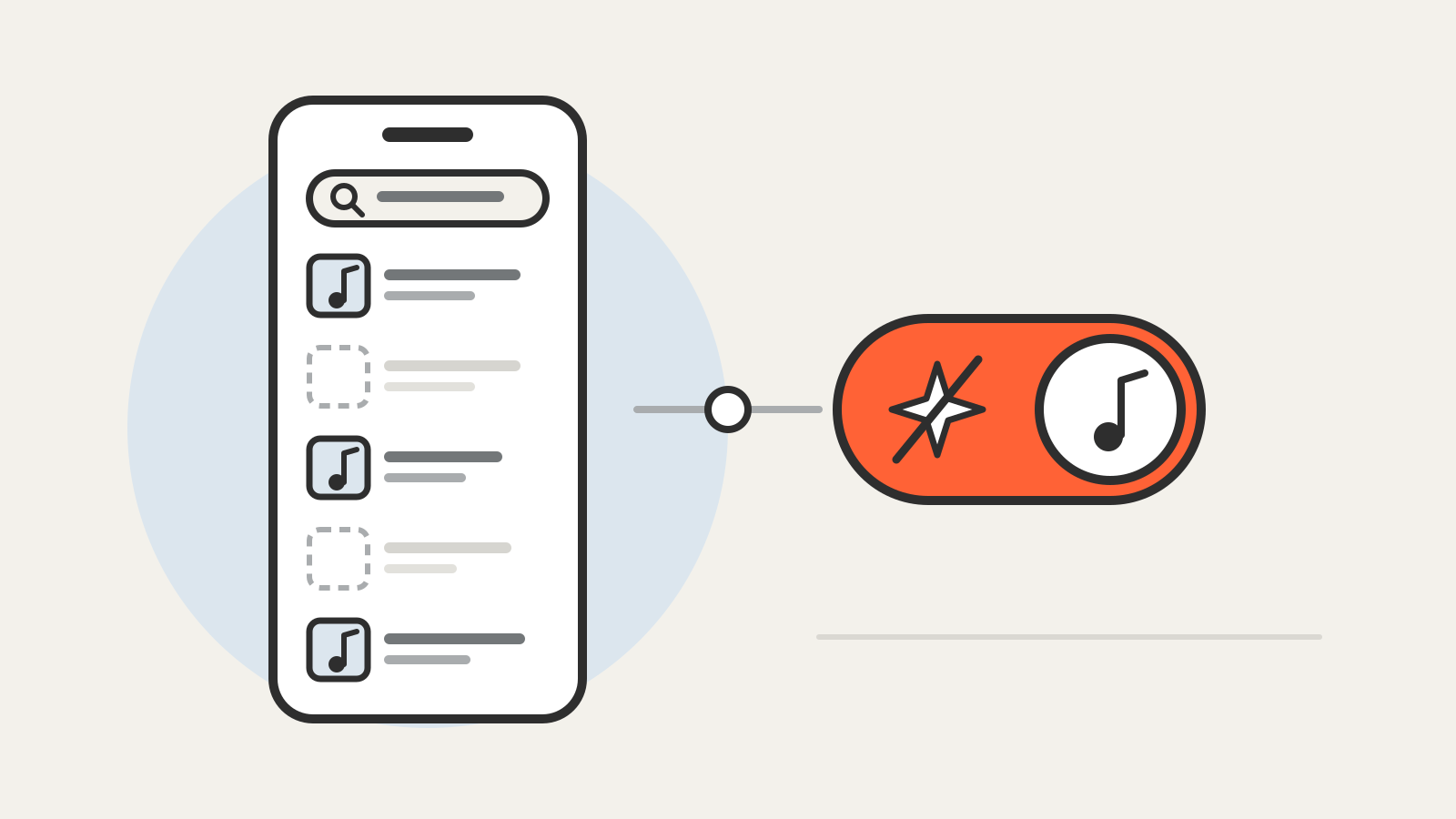
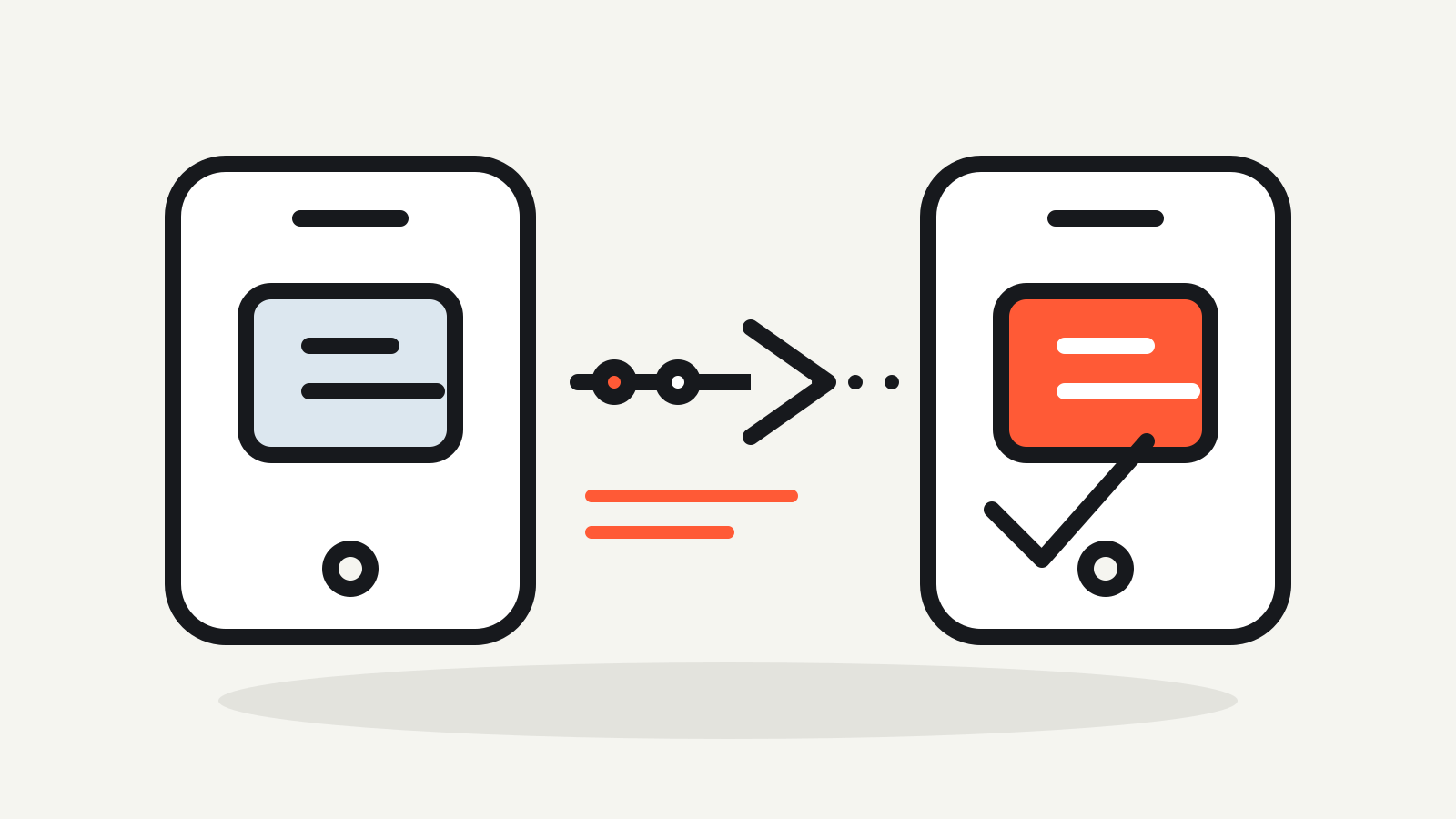
Moving an authenticator app to a new phone is safest while you still have the old phone, your account passwords and at least one backup sign-in method. Do not erase or trade in the old device until you have tested a real sign-in on the new one.
Authenticator apps generate time-based one-time passwords, but the way those accounts move depends on the app and on how each service registered the old device. A cloud backup can restore some entries. A QR export can copy others. Work accounts, passwordless sign-in and passkeys may still need separate registration.
Before you start
Make a short inventory before touching either phone:
- Keep the old phone charged and unlocked.
- Install the latest version of the authenticator app on both devices.
- Confirm that you know the password for every important account.
- Save the recovery codes supplied by each service, if you have not already done so.
- Add a second sign-in method where the service allows it, such as a security key, passkey or another trusted device.
- Check whether the app is signed in to a backup account and whether its latest backup completed.
Recovery codes should be stored somewhere separate from the phone. Do not paste them into notes that automatically sync to an account protected by the same authenticator.
If you are deciding whether to keep app-based codes at all, read how authenticator apps differ from SMS. A move is also a good time to see whether the service supports passkeys, but do not remove a working method until its replacement has been tested.
Moving Google Authenticator
Google Authenticator supports two different routes.
If you use Authenticator while signed in to a Google Account, Google says the verification codes synchronize across devices. Install the app on the new phone and sign in with the same Google Account. The codes should appear there. Google says the synchronized codes are encrypted in transit and at rest.
If you use Authenticator without a Google Account, transfer the entries directly:
- Install Google Authenticator on the new phone.
- On the old phone, open Menu → Transfer accounts → Export accounts.
- Unlock the old phone and select the accounts to move.
- On the new phone, open Menu → Transfer accounts → Import accounts.
- Scan every QR code shown by the old phone.
Google may create more than one QR code when several accounts are selected. Treat those transfer codes like credentials: scan them in private and do not photograph, print or share them.
These steps copy the authenticator entries. They do not prove that every service will accept the next code. Test several important accounts before wiping the old phone. Google also recommends enrolling in additional forms of two-step verification to reduce the risk of lockout.
Source: Google Account Help — Get verification codes with Google Authenticator.
Moving Microsoft Authenticator
Microsoft Authenticator uses backup and restore, but the result varies by account type.
On Android, Microsoft says to open Settings, turn on Cloud Backup, and choose the personal Microsoft account that will hold the backup. On iPhone, Microsoft requires iCloud Drive, iCloud Keychain and iCloud backup for Authenticator. Microsoft also says an iOS backup cannot be restored to Android, or an Android backup to iOS.
On the new phone, choose Restore from backup or Begin recovery before signing in to the app. Use the same recovery account that created the backup.
After restore:
- Third-party accounts that use 30-second verification codes normally restore their code entries.
- A personal Microsoft account using only one-time codes can restore those codes.
- Work or school accounts restore the account name, but still require you to sign in and complete setup.
- Passwordless Microsoft sign-in may also require another sign-in after restore.
- Passkeys are handled separately. A passkey saved only on the old phone must be set up for the new phone before the old one is removed.
Microsoft explicitly advises keeping the old phone until sign-in works on the new one. Its documentation also notes that a restored work account may show “Sign in to add your account”; that is expected, not proof that the backup failed.
Sources: Microsoft Support — Back up your accounts, Microsoft Support — Restore account credentials, and Microsoft Learn — Transfer Authenticator to a new phone.
Test the new phone before deleting anything
A list of rotating codes is not enough. Use the new phone to complete a real sign-in for each critical account.
Start with the account that holds your email, then test your password manager, financial accounts, work identity and developer services. Confirm that push approvals reach the new phone where applicable. Check that the device time and time zone are correct if a code is rejected.
Only after the tests pass should you remove the old authenticator method from each service and erase the old phone. Removing the device too early can turn a routine migration into an account-recovery problem.
If the old phone is already gone
There is no universal way to reconstruct authenticator secrets from a missing device.
Try, in this order:
- Restore the authenticator app from its configured backup.
- Use a recovery code saved when two-factor authentication was enabled.
- Sign in with another registered method, such as a passkey, security key or trusted device.
- Use the service’s official account-recovery process.
- Ask a workplace administrator to reset the work account’s authentication methods.
For Google Authenticator entries that were neither synchronized nor exported, Google says you must visit each service, remove the old code method and link the new device. Microsoft says that if restore is unavailable, accounts can be added again; work accounts may require administrator help.