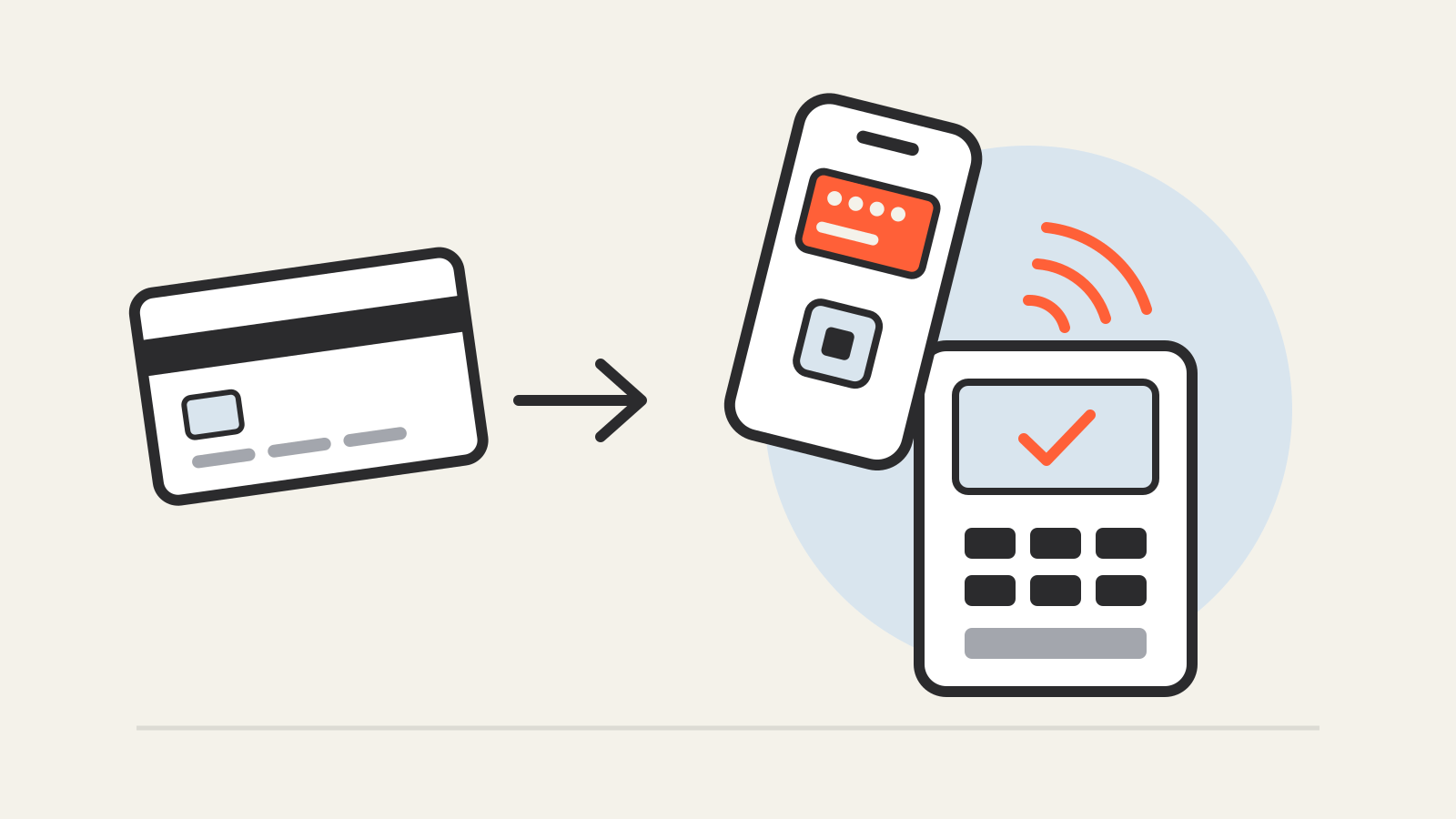
How does Apple Pay work? In short, your iPhone or Apple Watch never hands the store your real card number. When you add a card, your bank creates a separate number that belongs only to that device, and each payment adds a one-time security code. The merchant gets enough to charge you, but not the card number printed on your card.
This guide walks through what happens when you add a card, when you tap at a terminal and when you pay in an app or on a website, using Apple’s own security documentation.
Adding a card: where the token comes from
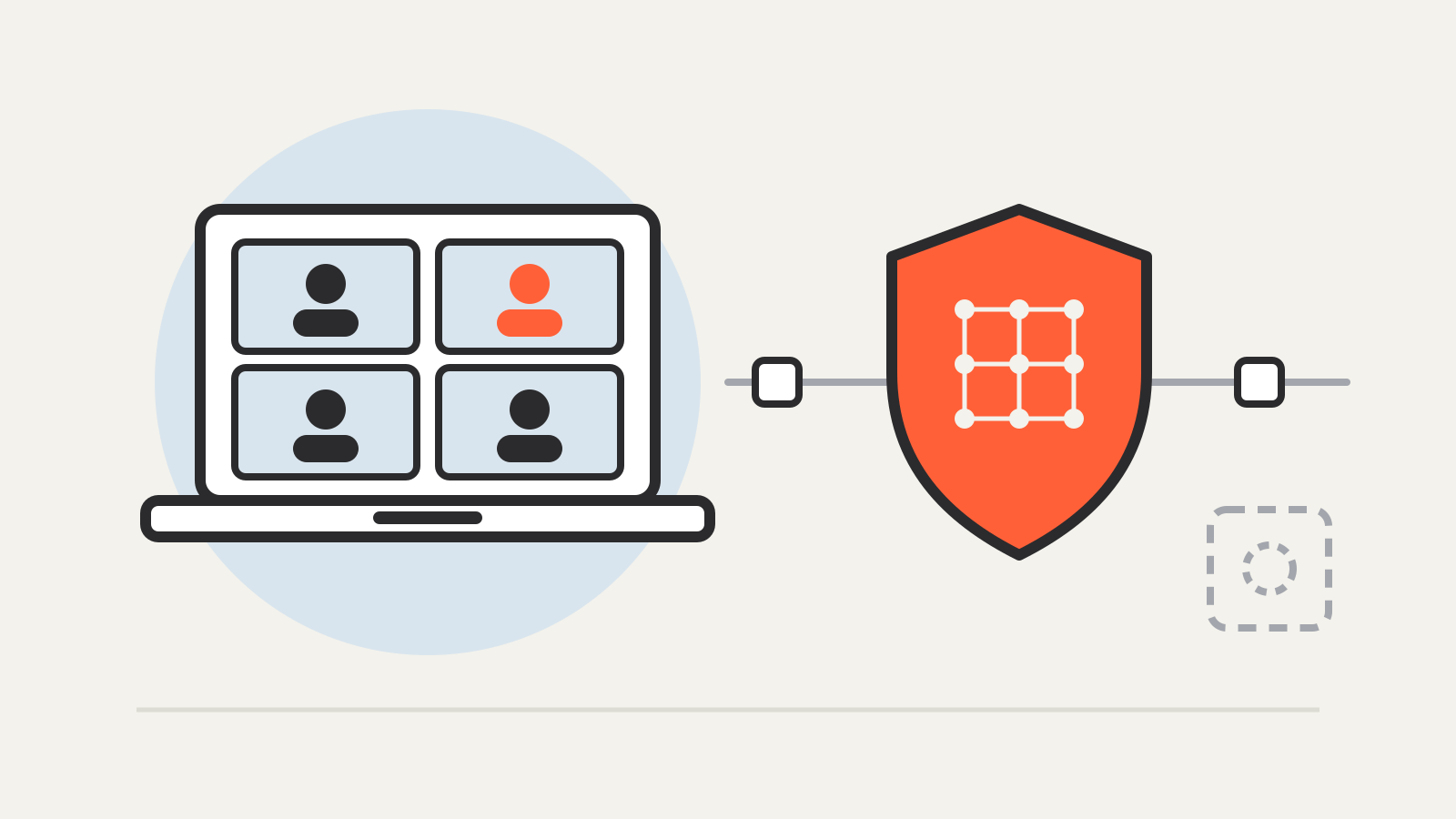
When you add a credit or debit card to Apple Wallet, the card details you enter are encrypted and sent to Apple’s servers, according to Apple’s Apple Pay security and privacy overview. Apple works out which payment network the card belongs to and re-encrypts the data with a key that only that network, or providers your card issuer authorizes, can unlock.
Once the card is approved, your card issuer (or a service provider working for it) creates a Device Account Number. This is the token that stands in for your card on that device. Apple says it cannot decrypt this number. It is stored in the Secure Element, a certified chip in the device that is isolated from iOS and watchOS, and it is never stored on Apple’s servers or backed up to iCloud.
Because the Device Account Number is different from your card number, your issuer can stop it from being used on a magnetic stripe card, over the phone or on websites. Apple keeps only a portion of your card number and of the Device Account Number, plus a card description, so you can manage cards across your devices.
If you have read our guide to what happens after you tap your card, this is the same idea of replacing the real card number with a token, carried out inside the phone.
Paying in a store
At a contactless terminal, the iPhone or Apple Watch talks to the reader over NFC, a contactless technology designed to work only across short distances. Before anything is sent, you have to authorize the payment.
According to Apple’s Platform Security guide on payment authorization, the Secure Enclave, a separate security processor, must confirm that you authenticated before the Secure Element releases payment data. Face ID or Touch ID is the default. On an iPhone with Face ID, you double-click the side button and glance at the screen. If biometrics fail (after three failed fingerprint matches or two failed face matches), the device offers your passcode instead, and after five failed attempts the passcode is required. The exception is a payment or transit card used with Express Mode, which Apple’s overview says does not need Face ID, Touch ID or a passcode.
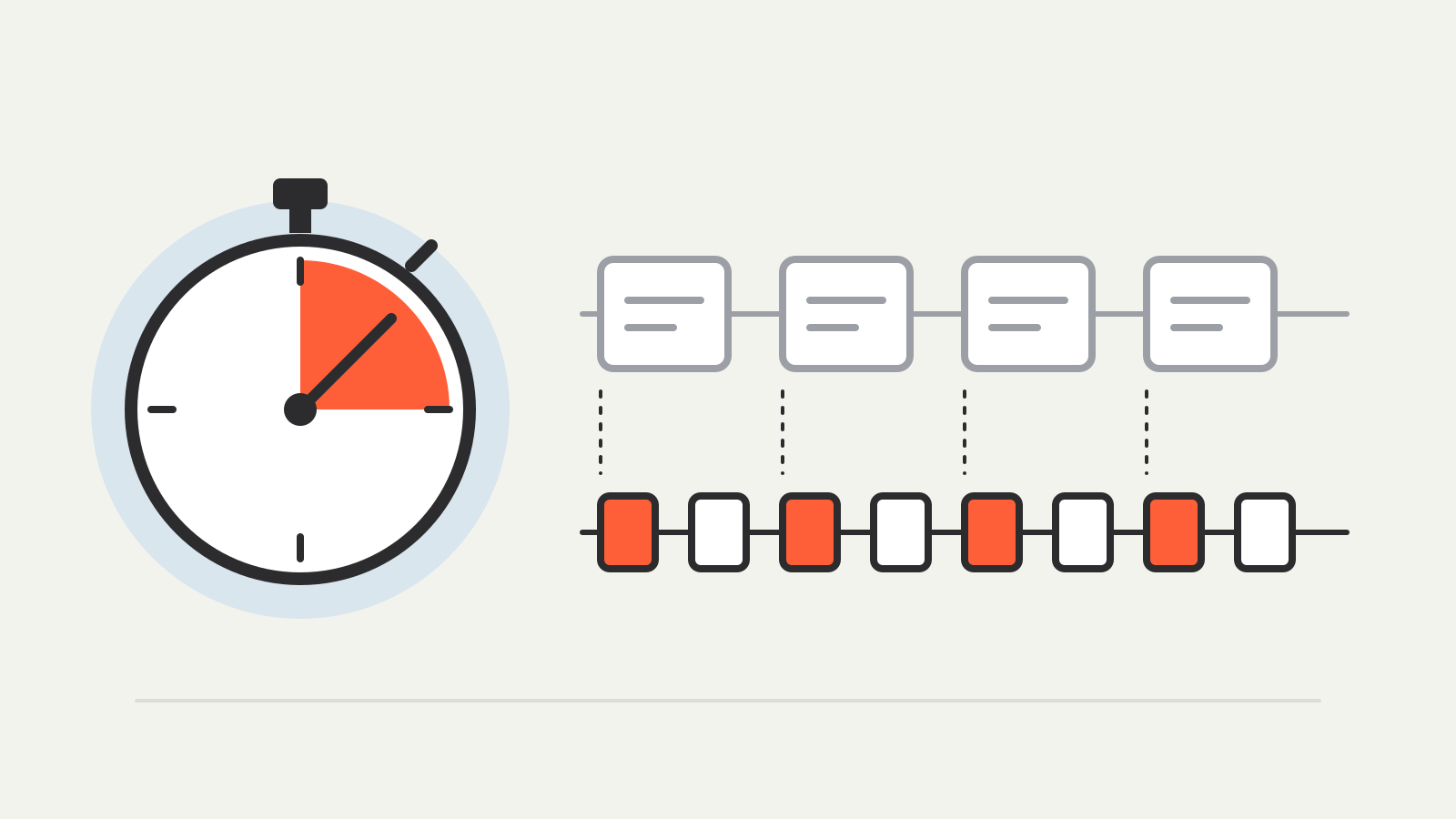
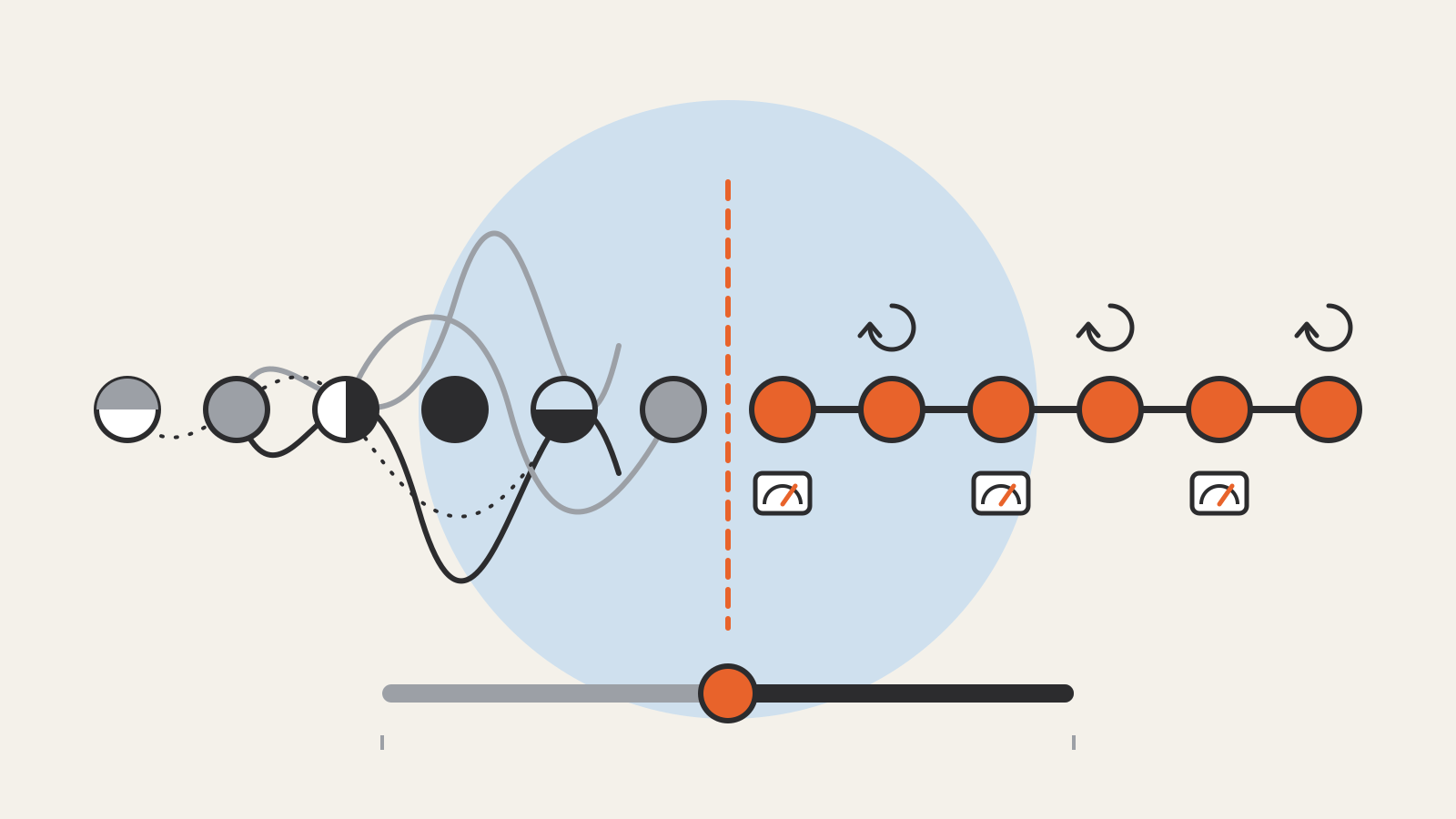
Once you authorize, the Secure Element sends the terminal your Device Account Number together with a transaction-specific dynamic security code. Apple’s security guide describes this payment cryptogram as a one-time code calculated from a counter that goes up with every transaction, a key held in the Secure Element and a random value supplied by the terminal. Before approving the payment, your bank, card issuer or payment network can check that the code is unique and tied to your device.
The store sees the token and the code, not your actual card number. Apple’s guide to paying with cards using Apple Pay says neither Apple nor your device shares your full card number with merchants.
Paying in apps and on websites
Online payments follow a similar path with one more step. When you pay in an app, Apple’s servers receive the encrypted transaction first and re-encrypt it with a key that belongs to that specific developer or merchant before relaying it. In this case the one-time code includes an anti-replay value from Apple Pay’s servers instead of a terminal’s random number, so the same payment cannot be submitted twice.
As in a store, the app or website receives the Device Account Number and a transaction-specific code, never your actual card number. The app only gets your full billing and shipping details after you authorize the payment. Websites must verify their domain every time they offer Apple Pay, and they must serve their pages over HTTPS.
What Apple and stores can see
Apple says it does not store your original card numbers. For card payments, it does not retain transaction information that can be tied back to you; Apple describes the transaction as staying between you, the merchant or developer, and your bank or card issuer.
For purchases in apps and on the web, Apple keeps anonymous transaction information, such as the approximate purchase amount, the app developer and app name, the approximate date and time, and whether the payment went through. Apple’s security guide says this information cannot be tied to you and never includes what you are buying. The merchant gets what it needs to fulfill your order, such as a shipping address you choose to share.
Keeping the real secret on your device is the same principle behind passwordless sign-ins; our guide to passkeys explains why it matters.
If your iPhone is lost or stolen
Apple’s overview lists several ways to stop payments:
- Lost Mode: if Find My is on, placing the device in Lost Mode suspends Apple Pay without canceling your cards. If you find the device, you can turn Apple Pay back on.
- Apple Account page: you can remove the ability to pay with your cards from a lost device after signing in to your Apple Account online.
- Remote erase: erasing the device remotely removes its ability to make payments.
- Your bank: you can call the card issuer to suspend or remove the card from Apple Pay.
Apple Pay in four steps
- Add a card. Your issuer creates a Device Account Number for that device, stored in the Secure Element.
- Authenticate. Face ID, Touch ID or your passcode confirms it is you, unless the card uses Express Mode.
- Pay. The device sends the Device Account Number and a one-time security code, never your card number.
- Verify. Your bank or payment network checks the code before approving the payment.